-
Shop
- Adidas
- AI Career Advantage Collection
- AI Skills for Creators & Freelancers
- AI Client Management
- AI Ethics
- AI Mindset
- AI Tools & Prompts
- AI Writing & Content Creation
- Audio, Voice & Music
- Design & Visual Creation
- Email, Messaging & Communication
- Freelancing & Business
- Marketing, Ads & Conversion
- Productivity, Workflow & Automation
- SEO & Search Optimization
- Social Media Content & Growth
- Strategy, Planning & Analytics
- Video Creation & Editing
- AI Skills Mastery 2026 Collection
- Apple Accessories
- Best-Sellers
- Business & Digital Skills
- Car Accessories
- Confidence
- Dating & Social Skills
- Digital Resources
- AI & Technology
- Beauty
- Budgeting & Saving
- Car Buying & Ownership
- Entrepreneurship & Business Growth
- Financial Education
- Financial Independence
- Financial Mindset & Psychology
- Goal Setting
- Hobbies
- Home Styling & Organization
- Kitchen & Recipes
- Leadership
- Mindfulness
- Online Business
- Parenting & Child Development
- Personal Style & Fashion
- Pet Lifestyle & Wellness
- Positive Thinking
- Sleep Improvement
- Smart Life with AI
- Stress Management & Relaxation
- Wellness
- Yoga & Mind-Body Practices
- Education & Learning
- Family & Home
- Family & Parenting
- Fashion
- Fashion & Beauty
- Fashion Accessories
- Furniture
- Gadgets
- Health & Beauty
- Health & Wellness
- Home & Garden
- Home Supplies
- Jewelry
- Kids & Babies
- Nike
- Personal Growth
- Personal Growth & Wellness
- Pet Care
- Pet Supplies
- Pets
- Sport & Outdoors
- Super Deals
- Travel
- Travel & Adventure
- Wealth
- Wealth Building
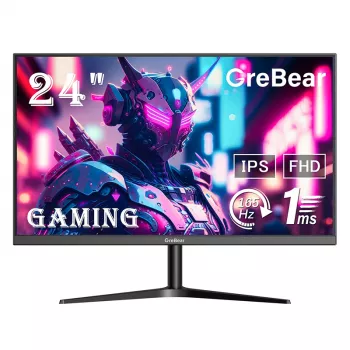
24-Inch 165Hz FHD Gaming Monitor with AMD FreeSync
24-Inch FHD Gaming Monitor with 165Hz Refresh Rate and AMD FreeSync Technology
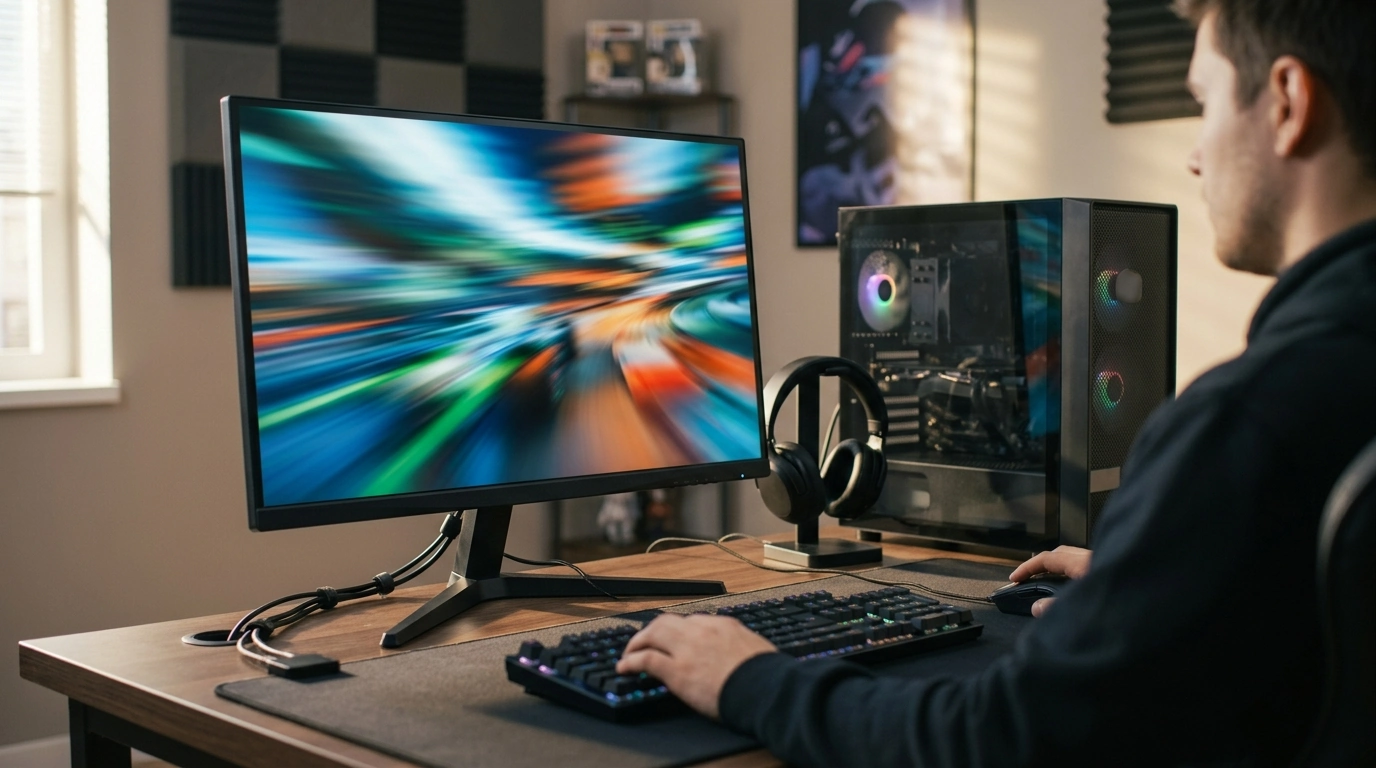
A 24-inch Full HD display paired with a high refresh rate hits a practical sweet spot for fast-paced games, where clear motion and responsive input matter more than sheer pixel count. This monitor focuses on smooth frame delivery with AMD FreeSync support, aiming to reduce tearing and stutter while keeping performance accessible for mainstream GPUs. If you’re coming from a 60Hz or 75Hz screen, the jump in fluidity is usually noticeable within minutes—especially in shooters, racers, and action titles. For more guidance, see The 7 Best Gaming Monitors of 2026.
At a Glance: Who This Monitor Fits Best
- Competitive players who prefer 1080p for higher frame rates and lower system load
- Gamers upgrading from 60Hz/75Hz who want visibly smoother motion
- Users who want variable refresh rate support to help stabilize gameplay during frame dips
- Desk setups where a 24-inch screen keeps everything within comfortable viewing distance
Core Features That Matter for Gameplay
- 165Hz refresh rate to reduce motion blur and improve tracking in shooters, racing, and action titles
- AMD FreeSync technology to minimize screen tearing and reduce perceived stutter when frame rate fluctuates
- 24-inch Full HD (1920×1080) size/resolution pairing that’s easy to drive at high FPS on many midrange PCs
- A practical choice for esports-style settings where consistent frame pacing is prioritized
For a deeper explanation of how adaptive sync works at the standards level, VESA’s overview of Adaptive-Sync provides helpful background: VESA AdaptiveSync (overview). For further reading, see Best Gaming Monitors 2026: Budget, Curved, G-Sync and ….
Quick Specifications
Use this snapshot to compare against your current monitor and your PC/console output capabilities. Confirm your device supports the refresh rate over the connection type you plan to use, and enable variable refresh rate in GPU settings to take advantage of adaptive sync.
| Spec | Details |
|---|---|
| Screen size | 24 inch |
| Resolution | 1920×1080 (Full HD) |
| Refresh rate | 165Hz |
| Adaptive sync | AMD FreeSync |
| Availability | In stock |
What 165Hz Changes in Real Use
- Smoother pans and clearer tracking versus 60Hz/75Hz, especially when your system can push higher FPS
- Lower perceived input delay when paired with high frame rates and sensible in-game settings
- More consistent motion in fast desktop scrolling and UI navigation—not just in games
- Best results come from matching high refresh with stable performance (often by optimizing graphics settings)
In practical terms, 165Hz gives your eyes more frequent updates. When your GPU is outputting frames quickly, that extra temporal detail can make targets easier to follow during strafes, flicks, and quick camera corrections. If performance is inconsistent, a high refresh panel still helps, but the biggest gains show up when frame pacing is steady.
How AMD FreeSync Helps
- Reduces tearing by syncing the display refresh to the GPU frame output within the supported VRR range
- Improves smoothness when frame rates vary (common in open-world scenes, heavy fights, and streaming/recording)
- Pair with frame caps and in-game V-Sync settings thoughtfully to avoid added latency or double buffering issues
- On compatible systems, enabling VRR in the GPU control panel is typically required for activation
Screen tearing happens when the monitor refreshes mid-frame, showing portions of two different frames at once. FreeSync reduces that by letting the display adjust its refresh timing to match your GPU’s output. AMD’s official FreeSync page breaks down the concept and goals clearly: AMD FreeSync Technology.
Setup Tips for a Cleaner, Faster Feel
- Set the display to 165Hz in your operating system and GPU control panel (it may default lower after first connect)
- Start with conservative gaming settings on the monitor (like overdrive), then adjust to reduce ghosting without adding overshoot
- Dial in brightness to match your room lighting to reduce eye fatigue during longer sessions
- For competitive titles, consider disabling heavy post-processing and using a frame cap slightly below max refresh for steadier pacing
If you need the exact Windows steps to switch refresh rate, Microsoft’s guide is straightforward: Change the refresh rate on your display in Windows. After confirming 165Hz is selected, enable adaptive sync/VRR in your GPU settings so FreeSync can do its job when frame rate varies.
Best-Use Scenarios
Price and Availability Check
Recommended In-Stock Picks for a Tidy Setup
- 24 Inch FHD Gaming Monitor with 165Hz Refresh Rate and AMD FreeSync Technology — the core upgrade for smoother motion and reduced tearing.
- Laptop Sleeve for MacBook Air/Pro 13–15.6 Inch — a simple way to protect a gaming laptop or travel system that’s feeding your 1080p/165Hz display.
- Silicone Charging Port Dust Cover for Apple iPhone — a low-cost accessory that helps keep ports cleaner if your setup shares desk space with daily-carry devices.
Product Page
For full listing details, current pricing, and the latest availability, visit the 24 Inch FHD Gaming Monitor with 165Hz Refresh Rate and AMD FreeSync Technology product page. Listing images can help you confirm the monitor’s look fits your desk setup and any mounting preferences you may have.
FAQ
Will 165Hz work automatically when the monitor is plugged in?
Not always. Many systems default to 60Hz until you manually select 165Hz in your display settings and GPU control panel, and the maximum refresh rate can also depend on the port and cable you’re using.
What does AMD FreeSync actually fix during gameplay?
FreeSync reduces screen tearing and helps smooth out uneven frame delivery by matching the monitor’s refresh to the GPU’s frame output within the supported VRR range. It’s most noticeable when frame rate fluctuates during heavy scenes or busy fights.
Is a 24-inch Full HD screen a good match for competitive gaming?
Yes. At typical desk distances, 24-inch 1080p is easy to scan quickly, and 1080p is generally easier to run at high FPS—both of which support faster reactions and more consistent aiming in competitive titles.
Recommended for you
Was this article helpful?
Yes
No








Leave a comment